
The instruments
How instruments work ?
In Antigone, an instrument is the unit of sound generation that lives inside a project. Each instrument is a self-contained chain that receives notes from the outside world, shapes them, generates sound and modulates that sound over time.
An instrument is composed of the following slots, accessible from its INSTRUMENT screen:
| Slot | Role | Learn more |
| CONTROL | Instrument control: defines how the instrument is triggered from the outside world — control source (CV/Gate or MIDI), MIDI channel, pitch bend, V/Oct and Gate routing for each voice. Voice mode, glide, drift and per-voice spread are not here — they live in the NOTE FX slot. | Voice control / Instrument control |
| NOTE FX | A processor placed at the input of the instrument, between the controller and the machine. It reshapes the incoming note information (pitch, gate, velocity) — quantization, transposition, glide, drift, chords, arpeggiator, rhythm generator. One Note FX per instrument. | Note FX |
| MACHINE | The synthesis algorithm that actually generates the sound. Antigone offers 6 machines (Synthesizer, Simple Oscillator, Sample Player, Granular, Drum Synth, Resonator), each with its own sonic character. | Synthesis machines |
| FLT ENV / AMP ENV | Built-in envelopes for the filter section and the amp section. Only present on machines that use the standard filter+amp signal chain — see below. | Filter & Amp sections |
| 6 MODULATORS | Six modulation sources running in parallel, attached to the instrument. Each one can host any modulator (DAHDSR envelope, LFO, Shape sequencer, Sample & hold, MSEG), be configured per-voice or shared, and be assigned to any modulable parameter via the MOD ASSIGN screen (long-press the button below the destination parameter). | Modulators |
Modulators are per-instrument. Each instrument carries its own 6 modulators — there are no longer "global" modulators at project level. A modulator from one instrument can still be assigned to a parameter of another instrument from that parameter's MOD ASSIGN screen.
An instrument in Antigone can have between 1 and 6 voices of polyphony. The number of voices is set in the project's voice layout. The voice mode (Mono, Legato, Unison, Unison Legato, Poly) is configured in the NOTE FX slot — see the Note Note FX for the per-instrument note-shaping (voice mode, scale, transpose, glide, drift, spread). The maximum effective polyphony depends on Antigone's available resources — the more active elements (oscillators, filters, modulators) an instrument carries, the more polyphony will be limited.
All parameters of an instrument can be saved on the SD card as a .navp preset, ready to be reloaded into another project. See Instrument file templates.
The built-in envelopes — a light DAHDSR
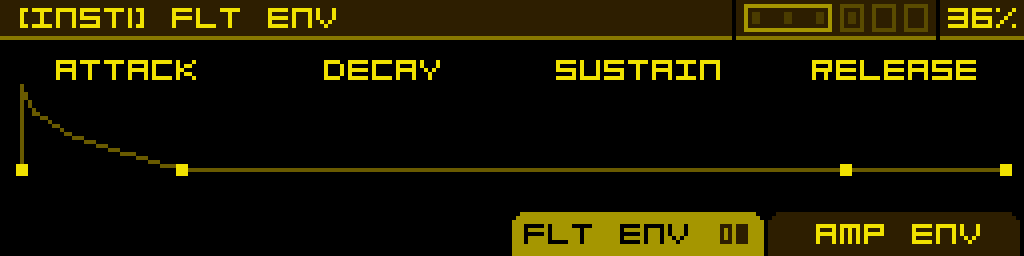
Some machines ship with two built-in envelopes, FLT ENV and AMP ENV, dedicated to the filter and amp sections of the standard signal chain. These envelopes are a light version of the DAHDSR modulator: same family of parameters, but stripped down and pre-wired to the filter cutoff (FLT ENV) and the VCA (AMP ENV) of their machine. They count as built-in slots on the instrument page — not as part of the 6 modulator slots.
| Machine | FLT ENV | AMP ENV |
| Synthesizer | ✓ | ✓ |
| Sample Player | ✓ | ✓ |
| Granular | ✓ | ✓ |
| Simple Oscillator | — | — |
| Drum Synth | — | — |
| Resonator | — | — |
Need more than two envelopes, or different shapes? Drop a full DAHDSR (or any other modulator) into one of the 6 modulator slots, then assign it from the destination parameter's MOD ASSIGN screen (long-press the button below that parameter). Machines without built-in envelopes simply rely on the modulator slots for everything envelope-related.
Main instrument screen
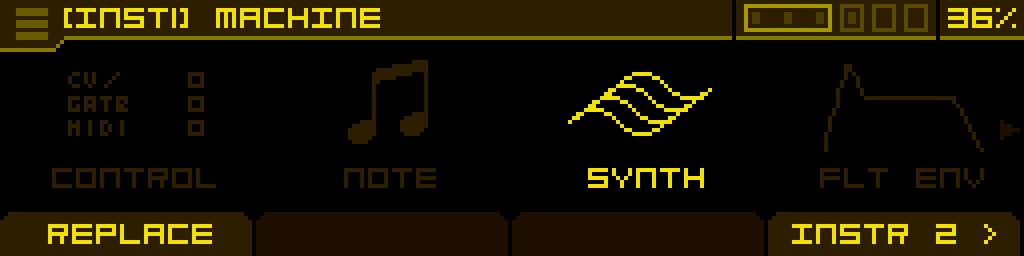
The instrument screen shows the slots described above, in this order:
CONTROL → NOTE FX → MACHINE → (FLT ENV → AMP ENV if the active machine has built-in envelopes) → MOD 1 → MOD 2 → MOD 3 → MOD 4 → MOD 5 → MOD 6
Up to four slots are visible at once. Turn the encoder to scroll through the list — small arrows in the left and right margins indicate when more slots are available off-screen. The header reads [INSTn] <slot name> to remind you which instrument and slot you are currently focused on.
Footer buttons
| REPLACE / ADD | PER VOICE / SHARED | < INSTR n | INSTR n > |
| Opens the replace module menu for the focused slot. Reads ADD when the slot is empty and REPLACE when it is occupied. Disabled on built-in envelope slots, which cannot be replaced. | Modulator slots only. Toggles the render mode of the focused modulator: PER VOICE (one independent instance of the modulator runs for each voice of the instrument) or SHARED (a single instance is shared by every voice). | Jumps to the previous instrument of the project, without going back to the PROJECT screen. | Jumps to the next instrument of the project, without going back to the PROJECT screen. |
Tip: the PER VOICE / SHARED button only appears when a modulator slot is focused — it is the same setting as the render mode described in the modulators chapter.
How to access an instrument
There are several equivalent ways to reach an instrument:
- from the PROJECT screen: select the instrument with the encoder and press it (see How projects work).
- from any screen of the module: ALT + turn the encoder to open the shortcut menu, then pick INSTR 1, INSTR 2, …
- from another instrument's page: use the < INSTR n / INSTR n > footer buttons.
Slot management
Adding a module to an empty slot
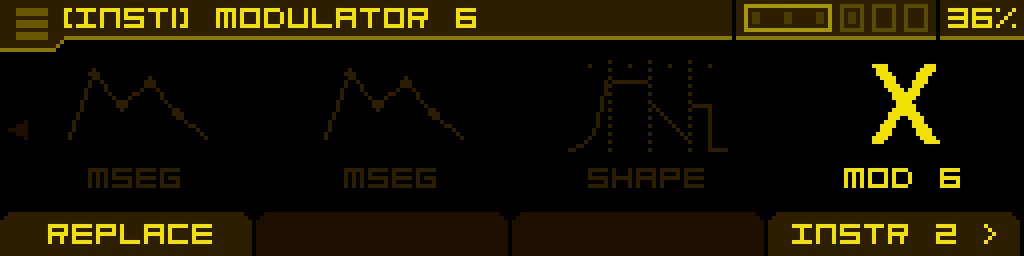
To add a module to an empty slot, focus the slot with the encoder and either click the encoder or press the ADD footer button. A list of modules compatible with that slot appears:
- MACHINE slot → the list of available machines (Synthesizer, Simple Oscillator, Sample Player, Granular, Drum Synth, Resonator, plus Empty (remove) to clear the slot).
- NOTE FX slot → the list of available Note FX (NOTE, CHORDS, ARPEGGIATOR, RHYTHM GEN).
- MODULATOR slot → the list of available modulators (ADSR/DAHDSR, LFO, Shape sequencer, Sample & hold, MSEG, etc.).
Confirm your selection by clicking the encoder.
Replacing a module
If a slot already contains a module, focus it and press REPLACE (or long-press the encoder) to open the same list and swap the module. The previous module's parameters are discarded.
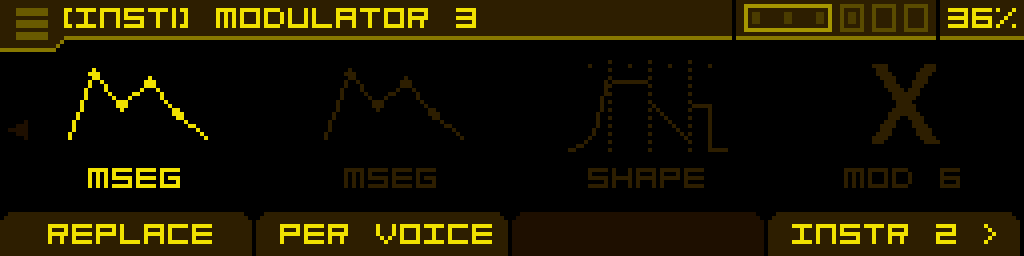
The CONTROL slot and the built-in FLT ENV / AMP ENV slots cannot be replaced — they are part of the instrument's structure, not a generic module slot.
Editing a module's parameters
Once a slot is occupied, click the encoder to enter the module's edit screen.
Navigating between slots
Turn the encoder to move from one slot to the next. Slots are arranged in a single horizontal list and the cursor wraps at the burger icon on the far left.
Burger menu
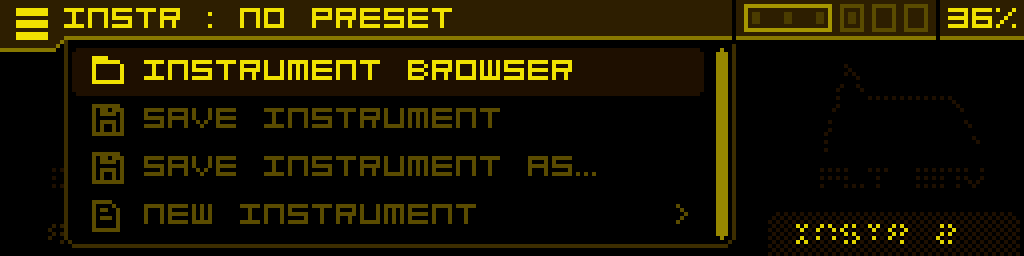
The instrument's burger menu lives at the top-left of the screen — turn the encoder fully to the left to highlight it, then press the encoder. It contains:
- instrument browser — open the instrument file browser on the SD card.
- Save instrument — save the current instrument to its existing
.navpfile. - Save instrument as... — save the instrument under a new name.
- New instrument — opens a submenu with instrument templates stored on the SD card.
For more on the file format and templates, see Instrument file templates.