
Modulators
Sample & Hold
A Sample & Hold virtual circuit that reads an input in real time (external or internal) and takes a "snapshot" of this input whenever it receives a trigger signal. This snapshot is a fixed value that will be output until a new "snapshot" is taken.
On any page of the S&H modulator, a visual display provides a rough outline of the source signal and the sampled value.
Main screen of the Sample & Hold modulator
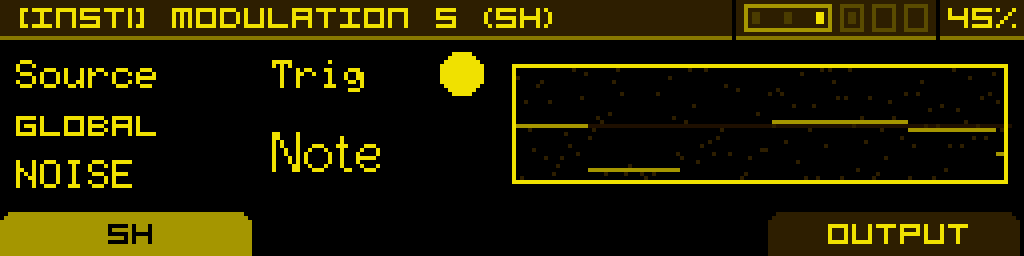
On the real-time chart displayed on the screen, the input source is shown in a faded background, while the sampled output appears in black.
The trigger parameter has a small indicator that lights up whenever a trigger signal is received.
S&H Tab
This section allows you to configure the basic parameters for the Sample & Hold:
| Source | Trigger | - | - |
|---|---|---|---|
| The signal to be sampled can be internal noise, any CV input, modulators from any voice or global sources, Macros, or even any Voice output. Additionally, it includes a selection of MIDI parameters such as Velocity, Key Follow, Aftertouch, and ModWheel. | The S&H can be triggered by any of the Gate inputs, the Voice trigger, or various divisions and multiplications of the MIDI clock.
A small dot indicator will activate each time a trigger is received, signaling that a new sample has been taken. | - | - |
Output Tab
This section allows you to shape the S&H signal before it is sent to modulation targets:
| Polarity | Gain | - | - |
|---|---|---|---|
Select the polarity of the S&H signal:
| Adjust the level of the S&H signal. This parameter can be modulated. | - | - |
Render mode (Per Voice / Shared) — like every modulator, Sample & Hold can be set to Per Voice (each voice samples and holds its own value, on its own trigger) or Shared (a single S&H is shared by every voice). Per-Voice is the default and gives each voice its own random value; switch to Shared when every voice should hear the same sample (e.g. a single random pitch shift applied to a polyphonic chord), or to save CPU. Toggle the mode from the INSTRUMENT screen — focus the modulator slot, then press the PER VOICE / SHARED button in the footer.