Annex
How to update the firmware ?
Step 1: Checking the current firmware installed
The current firmware version installed on your module is displayed at the module startup.
You can also check the version installed by moving the encoder to the left until you reach the burger menu, click on the encoder, and move until the "SYSTEM INFO" menu.
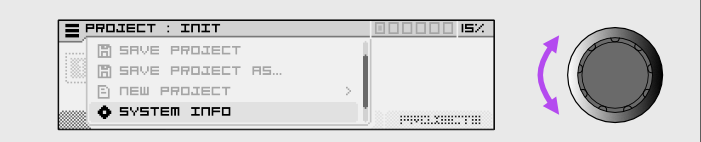
Click on the encoder again, you'll reach this screen :
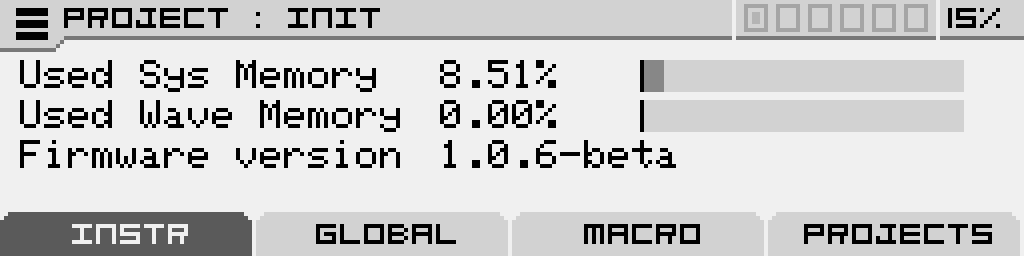
On which you can see the memory used by the system, the memory used by the wavetables and the version of the firmware installed.
Step 2 : Download the Firmware Update Tool (teensyloader)
The tool for loading new firmware is available for Windows, Macintosh, and Linux operating systems.
Download link for Windows version:
https://www.pjrc.com/teensy/teensy.exe
Download link for Macintosh (Apple) version:
https://www.pjrc.com/teensy/teensy.dmg
Explanation link for Linux (Ubuntu) installation:
https://www.pjrc.com/teensy/loader_linux.html
Step 3 : Connect the Antigone Module
Connect the Antigone using a standard micro USB cable to your computer.
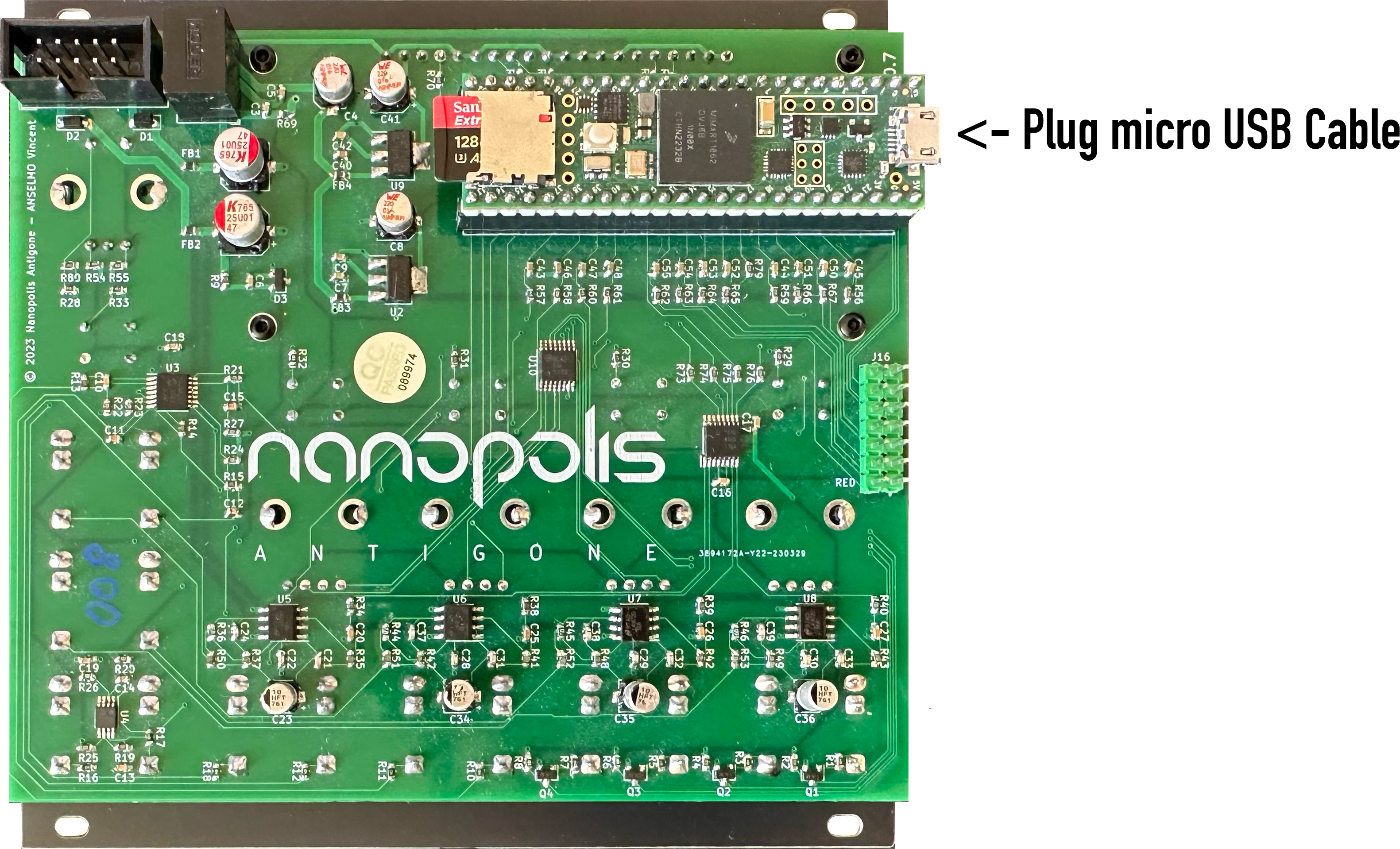
Step 4 : Run Teensy Loader
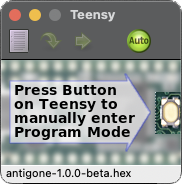
Run the firmware loading tool you downloaded earlier.
Step 5: Open the .hex Firmware File
Browse the firmware releases and download the latest .hex from our news feed:
All Antigone firmware releases →
Each release post includes the firmware file, the SD card archive (when applicable), the full changelog and any version-specific instructions.
Major version change — V1 ↔ V2 preset incompatibility. Instrument and project presets are not compatible between firmware V1 (1.x) and V2 (2.x) in either direction.
Updating from 1.x to 2.x — your V1 instrument and project presets will not load on V2. Note them down (or take screenshots) before flashing, then plan to recreate them on V2. Keep a copy of your current V1 SD card content in case you ever need to roll back.
Downgrading from 2.x back to 1.x — V2 presets will not load on V1. If you roll back, restore the matching V1 SD card content alongside the firmware.
Updates that stay within the same major (e.g. 1.0.4 → 1.1.5, or 2.0.1 → 2.0.2) keep full preset compatibility.
Warning: The contents of the SD card have changed since version 1.0.0, please perform step 7 of this manual if you had a version lower than 1.0.0, otherwise the module will not start.
Click on the icon  and choose the firmware .hex file (example: antigone-1.0.0-beta.hex), then click on the "Auto" button so it lights up green as shown in the screenshot above.
Step 6: Press the Button
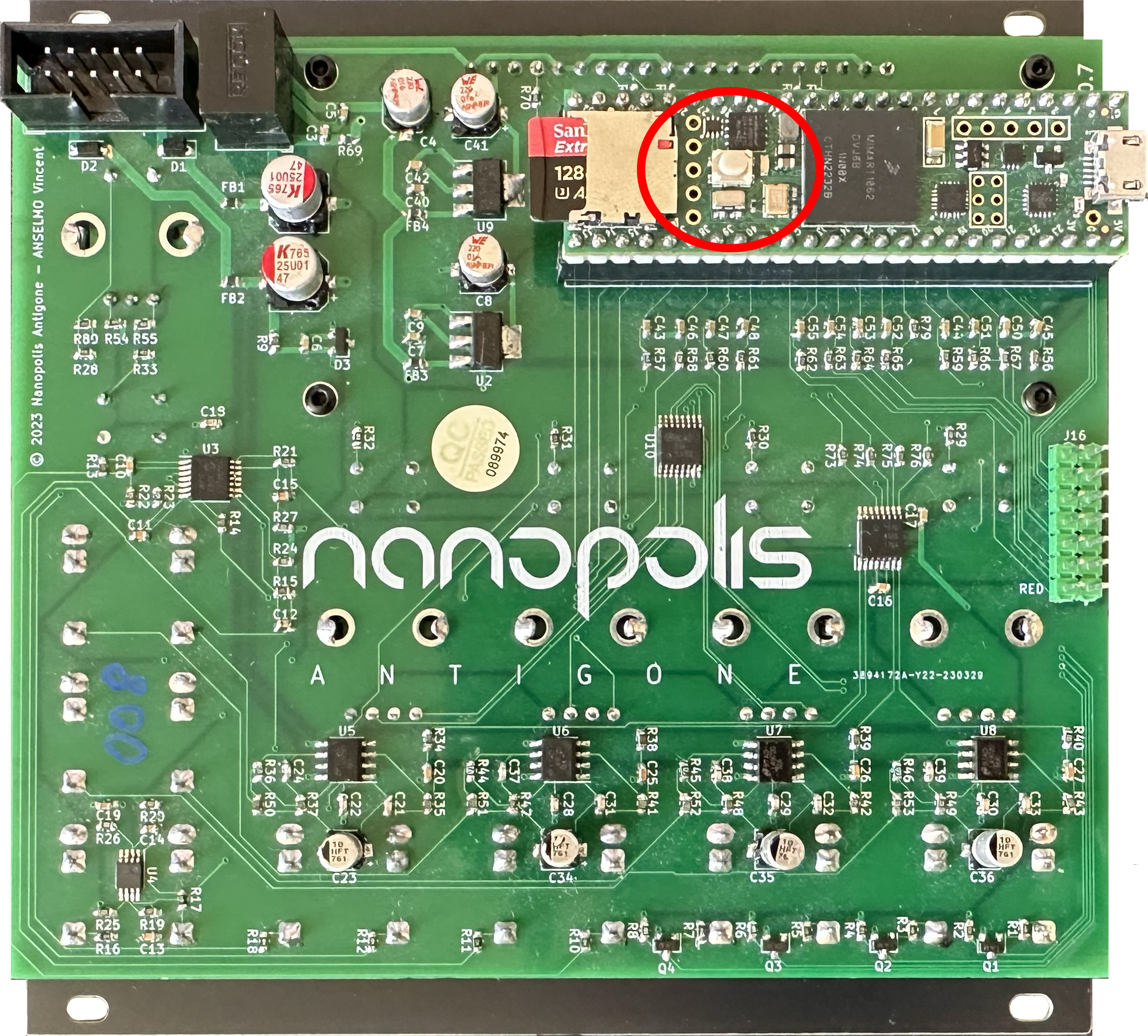
Press the button circled in red in the photo above. The firmware will update automatically. Once the message "Reboot OK" appears, you can remove the USB cable and put the Antigone module back into your Eurorack case.
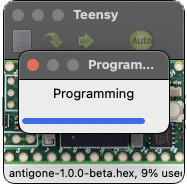
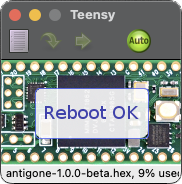
You can check if the new version is properly installed by redoing step 1
Step 7: Reinitialize the Micro SD Card
The micro SD card of the module must be formatted to exFat. (Factory formatting is already in exFat format)
Download the SD card content from the firmware release that matches your installed firmware — each release post on the Antigone news feed ships the matching SDCard-vX.X.X.zip archive in its Downloads section.
Unzip the downloaded zip file, and copy all directories to your microSD card (Instruments, Projects, Samples, System and Wavetables)
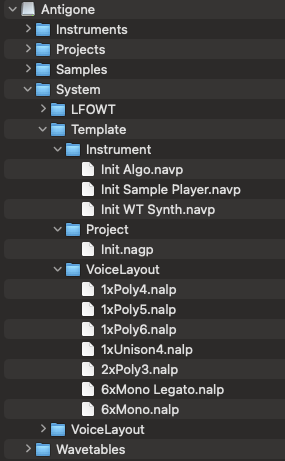
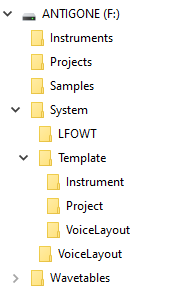
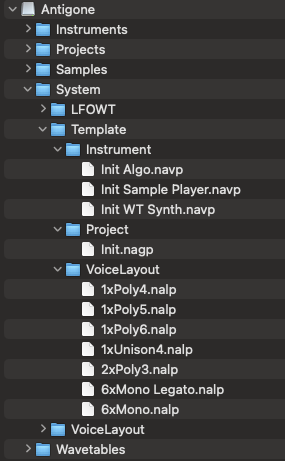
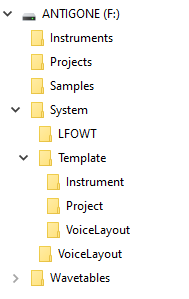
The contents of the card should look like this, the Instruments, Projects, Samples, System and Wavetables directories should be at the root of the SD card.
| On Mac it must look like | On WIndows it must look like |
|  |  |